
Flip on Short Edge vs Long Edge: 11 Key Differences to Choose the Right Duplex Printing Option
Introduction
When you select flip on short edge vs long edge in your printer settings, it may seem like a small choice. However, choosing the wrong option can leave your pages upside down, making booklets, reports, or presentations difficult to read. Whether you’re printing at home, in the office, or at school, understanding these duplex printing settings can save time, paper, and frustration.
Many users in the USA and UK encounter these options while printing PDF documents, Word files, contracts, manuals, brochures, or educational materials. Yet the terms often confuse even experienced printer users because different printer brands display the settings in slightly different ways.
This guide explains everything you need to know about flip on short edge vs long edge, including how each option works, when to use it, common mistakes to avoid, and tips for getting perfect double-sided prints every time. By the end of this article, you’ll know exactly which setting to choose for your printing project.
What Is Duplex Printing?
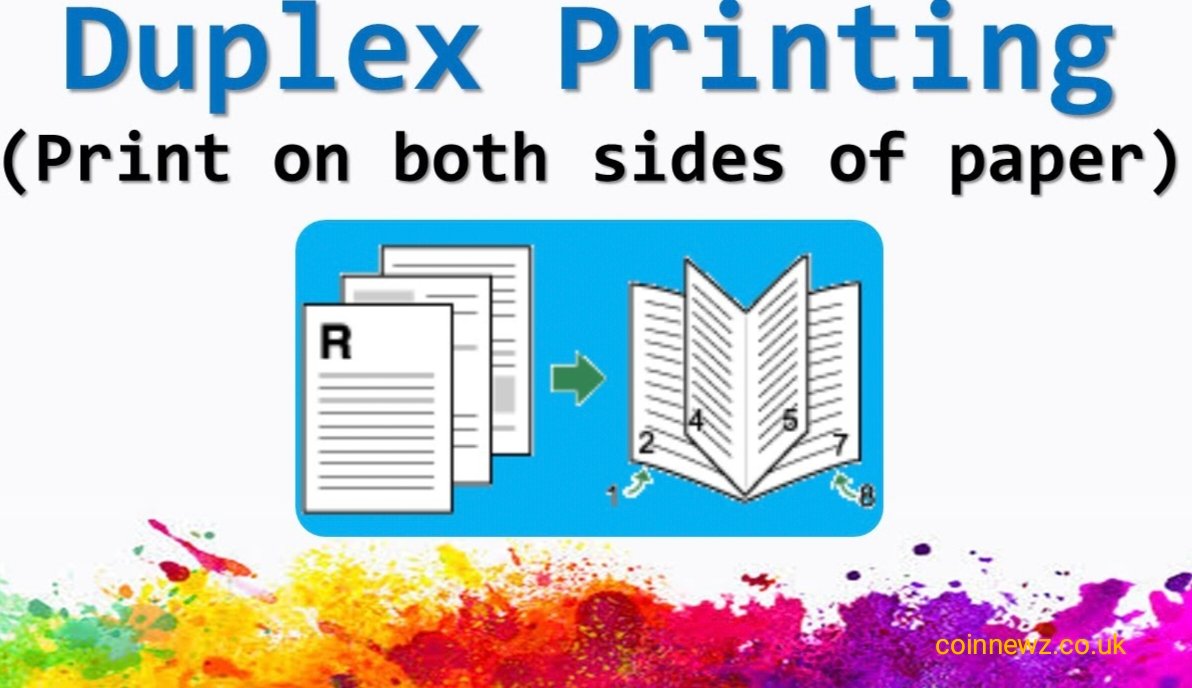
Duplex printing is the process of printing on both sides of a sheet of paper. Instead of printing on only one side, the printer automatically or manually prints on the front and back, reducing paper usage and creating professional-looking documents.
Benefits of Duplex Printing
- Saves paper and printing costs.
- Creates cleaner and more professional documents.
- Reduces storage space for printed files.
- Environmentally friendly by minimizing paper waste.
- Ideal for reports, manuals, presentations, and books.
Modern printers from brands like HP, Canon, Epson, Brother, and Xerox usually support automatic duplex printing, while some entry-level models require users to reinsert the paper manually.
Automatic vs. Manual Duplex Printing
Automatic Duplex Printing
The printer automatically flips the paper and prints the second side without user intervention. This is the easiest and fastest option.
Manual Duplex Printing
If your printer doesn’t support automatic duplex printing, you’ll need to print one side first, reload the paper correctly, and then print the second side. Understanding flip on short edge vs long edge becomes even more important in manual duplex printing.
Flip on Long Edge
The Flip on Long Edge setting tells the printer to bind pages along the longer side of the paper. This makes the document behave like a traditional book.
For example:
- Letter-size paper in portrait orientation flips from left to right.
- A4 paper in portrait orientation behaves the same way.
- Each page turns naturally like the pages of a novel or magazine.
This is the most commonly used duplex setting because most reports, business documents, and school assignments are printed in portrait orientation.
When to Use Flip on Long Edge
Choose this option when printing:
- Business reports
- Office documents
- School assignments
- Books
- eBooks for printing
- Contracts
- Manuals
- Research papers
- Meeting notes
- Legal documents
Advantages of Flip on Long Edge
- Easy and natural page turning.
- Best for portrait documents.
- Professional appearance.
- Compatible with most office printing needs.
- Prevents upside-down pages when reading like a book.
Example
Imagine printing a 40-page business report.
With Flip on Long Edge, page 1 appears on the front, page 2 on the back, and every page turns naturally from left to right, just like reading a standard book.
If you accidentally choose Flip on Short Edge instead, every back page may appear upside down.
Why It Matters
Many people assume these printer settings don’t make much difference. In reality, selecting the wrong flip option is one of the most common causes of printing errors. It often results in wasted paper, ink, and time—especially when printing large reports or presentation materials.
Understanding the correct setting before printing can help you avoid reprinting entire documents and ensure your pages are aligned exactly as intended.
Flip on Short Edge
The Flip on Short Edge option tells the printer to bind the pages along the shorter side of the paper. Instead of turning pages like a book, the document flips upward, similar to a notebook, calendar, or writing pad.
This setting is commonly used for landscape documents, training materials, presentation handouts, and documents that are designed to flip from the top.
When comparing flip on short edge vs long edge, this option is ideal whenever the document’s layout requires pages to turn vertically rather than horizontally.
How Flip on Short Edge Works
If you’re printing a document in landscape orientation, selecting Flip on Short Edge ensures the back side prints in the correct direction. Each page can be turned naturally without appearing upside down.
For example:
- Landscape presentation slides
- Flip-style training guides
- Wall calendars
- Top-bound notepads
- Landscape worksheets
Choosing the wrong option may cause every second page to be inverted, making the document difficult to read.
Advantages of Flip on Short Edge
- Perfect for landscape printing.
- Keeps page orientation correct.
- Ideal for flip-style documents.
- Creates a professional appearance.
- Prevents upside-down back pages.
When Should You Use Flip on Short Edge?
Use this setting when printing:
- PowerPoint presentation handouts
- Landscape brochures
- Landscape reports
- Calendars
- Instruction sheets
- Flip charts
- Top-bound notebooks
- Restaurant menus
- Educational worksheets
- Design mockups
Quick Reference Table
| Printing Situation | Best Option |
| Books | Flip on Long Edge |
| Business Reports | Flip on Long Edge |
| School Assignments | Flip on Long Edge |
| Contracts | Flip on Long Edge |
| Portrait Documents | Flip on Long Edge |
| Landscape Slides | Flip on Short Edge |
| Calendars | Flip on Short Edge |
| Flip Charts | Flip on Short Edge |
| Landscape Brochures | Flip on Short Edge |
| Top-Bound Notebooks | Flip on Short Edge |
This quick comparison makes it easier to decide between flip on short edge vs long edge without guessing.
Understanding the Options in Plain Language
Many printer users are confused because the wording sounds technical. Fortunately, the concept is simple.
Imagine holding a printed sheet in your hands.
Flip on Long Edge
You turn the page left to right, just like reading:
- A novel
- A textbook
- A magazine
- A business report
This is the default choice for most documents.
Flip on Short Edge
You flip the page upward, like:
- A wall calendar
- A notebook
- A desk planner
- A presentation flipbook
The page rotates differently, which is why selecting the correct setting matters.
Easy Memory Trick
Remember this simple rule:
- Long Edge = Book Style
- Short Edge = Calendar Style
This quick trick helps you avoid mistakes whenever you see the duplex printing options.
Common Use Cases and Scenarios
Understanding real-world examples makes it much easier to choose the correct setting.
Office Printing
Businesses usually print:
- Contracts
- Reports
- Financial statements
- HR documents
Recommended Setting: Flip on Long Edge
School and University
Students commonly print:
- Assignments
- Essays
- Research papers
- Notes
Recommended Setting: Flip on Long Edge
Presentation Handouts
If presentation slides are printed in landscape orientation:
Recommended Setting: Flip on Short Edge
Restaurant Menus
Many folded or landscape menus work best with:
Recommended Setting: Flip on Short Edge
Product Manuals
Instruction manuals are usually portrait documents.
Recommended Setting: Flip on Long Edge
Marketing Brochures
Depending on the brochure layout:
- Portrait brochure → Flip on Long Edge
- Landscape brochure → Flip on Short Edge
Choosing the correct option ensures the finished document looks professional and easy to read.
Printing Tips for USA and UK Users
Whether you’re printing at home, in a school, or in an office in the USA or UK, most modern printers use the same duplex printing principles. Printer drivers may use slightly different wording, but the functionality remains the same.
If you’re unsure, print a two-page test document before printing a large report. This simple step can save paper, ink, and time.
For more practical technology guides and printing tips, readers can also explore resources available on Coinnewz.co.uk, where easy-to-follow tutorials help users solve everyday tech problems.
Variations in Printer Terminology
One reason people get confused about flip on short edge vs long edge is that different printer manufacturers use different names for the same duplex printing settings. Although the wording may vary, the function remains almost identical.
Below are some common examples:
| Printer Brand | Long Edge Option | Short Edge Option |
| HP | Flip on Long Edge | Flip on Short Edge |
| Canon | Long Edge Binding | Short Edge Binding |
| Brother | Long Edge | Short Edge |
| Epson | Long Edge Binding | Short Edge Binding |
| Xerox | Book Style | Calendar Style (or Short Edge) |
| Lexmark | Long Edge | Short Edge |
Always preview your document before printing, especially if you’re using a new printer or updated driver.
Common Printer Software Labels
Depending on your operating system or printing software, you may also see:
- Two-Sided Printing
- Duplex Printing
- Double-Sided Printing
- Print on Both Sides
- Long Edge Binding
- Short Edge Binding
- Book Style
- Tablet Style
- Flip Pages Up
- Flip Pages Sidflip on short edge vs long edgeeways
Although the wording changes, the concept behind remains the same.
Pitfalls to Avoid
Many printing problems happen because users choose the wrong duplex setting. Here are the most common mistakes and how to avoid them.
1. Printing Portrait Documents with Short Edge
This is one of the biggest mistakes.
Result:
- Every second page prints upside down.
- The document becomes difficult to read.
- Paper and ink are wasted.
Correct Choice: Flip on Long Edge.
2. Printing Landscape Slides with Long Edge
When printing PowerPoint presentations or landscape PDFs, choosing the wrong option causes the back side of each page to rotate incorrectly.
Correct Choice: Flip on Short Edge.
3. Ignoring Print Preview
Many users click Print without checking the preview.
A quick preview helps identify:
- Wrong orientation
- Incorrect margins
- Page rotation issues
- Duplex errors
Taking a few seconds to review the preview can save a lot of time and resources.
4. Forgetting Manual Duplex Instructions
If your printer doesn’t support automatic duplex printing, follow the on-screen instructions carefully when reinserting paper.
Placing the paper incorrectly may cause:
- Blank pages
- Upside-down pages
- Reversed page order
5. Mixing Portrait and Landscape Pages
Some documents contain both portrait and landscape pages.
Before printing:
- Review page orientation.
- Print a small test if necessary.
- Confirm the duplex setting matches the document layout.
6. Using the Wrong Paper Orientation
Make sure the page orientation in your software matches your intended print layout.
- Portrait documents generally work best with Flip on Long Edge.
- Landscape documents often require Flip on Short Edge.
Tips for Error-Free Duplex Printing
Follow these practical tips to get perfect results every time.
Print a Test Page First
Before printing a large report or booklet, print only the first two pages. This helps confirm that the selected duplex setting is correct.
Use Print Preview
Always check the preview for:
- Correct page order
- Proper orientation
- Margins
- Duplex layout
Know Your Document Type
Ask yourself:
- Is it a book or report? → Use Flip on Long Edge.
- Is it a calendar or landscape handout? → Use Flip on Short Edge.
This simple question prevents most printing mistakes.
Keep Your Printer Driver Updated
Manufacturers regularly release updates that improve:
- Compatibility
- Print quality
- Duplex performance
- Bug fixes
Using the latest driver can reduce printing errors.
Follow Printer Instructions
Every printer model is slightly different. If you’re unsure about a setting, consult the user manual or the manufacturer’s support page for your specific model.
Additional Duplex Printing Best Practices
To make your double-sided printing even more reliable, keep these best practices in mind:
- Use good-quality paper to reduce paper jams.
- Fan the paper stack before loading it into the tray.
- Avoid overloading the paper tray.
- Make sure the paper guides are properly aligned.
- Check ink or toner levels before printing long documents.
- Print a sample copy before producing multiple copies.
These small steps can improve print quality and help avoid unnecessary delays.
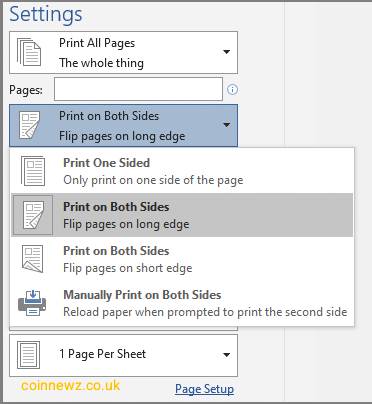
How to Find Duplex Printing Settings
Finding the duplex printing option is usually straightforward, but the exact location depends on your operating system and printer software. Most modern printers from HP, Canon, Brother, Epson, Xerox, and Lexmark include built-in support for double-sided printing.
On Windows
- Open your document.
- Select File → Print.
- Choose your printer.
- Click Printer Properties, Preferences, or More Settings.
- Locate Two-Sided Printing or Duplex Printing.
- Choose either:
- Flip on Long Edge
- Flip on Short Edge
- Preview your document.
- Click Print.
On macOS
- Open the document.
- Select File → Print.
- Click Show Details if necessary.
- Enable Two-Sided.
- Select the binding option:
- Long-Edge Binding
- Short-Edge Binding
- Review the print preview.
- Print your document.
If Your Printer Doesn’t Support Automatic Duplex Printing
Some budget printers require manual duplex printing.
To print successfully:
- Print all odd-numbered pages first.
- Reinsert the paper according to your printer’s instructions.
- Print the even-numbered pages.
- Test with two pages before printing an entire document.
This method takes slightly longer but still saves paper.
Which Option Should You Choose?
If you’re still unsure about flip on short edge vs long edge, use this simple guide:
Choose Flip on Long Edge if you’re printing:
- Books
- Reports
- Assignments
- Contracts
- Office documents
- Business proposals
- Research papers
- Manuals
- Most portrait documents
Choose Flip on Short Edge if you’re printing:
- Landscape presentations
- Calendars
- Flip charts
- Landscape brochures
- Top-bound notebooks
- Training handouts
- Design layouts
- Landscape worksheets
A quick two-page test print can confirm you’ve selected the correct option before printing a larger document.
FAQ’s
What does flip on short edge vs long edge mean?
These are duplex printing settings that determine how pages are turned after double-sided printing. Long edge creates a book-style layout, while short edge creates a calendar-style layout.
Which option is best for normal printing?
For most reports, letters, books, and school assignments, Flip on Long Edge is the correct choice because pages turn naturally like a book.
When should I use Flip on Short Edge?
Use Flip on Short Edge when printing landscape documents, presentation slides, calendars, or any document designed to flip from the top.
Why are my back pages printing upside down?
This usually happens because the wrong duplex setting was selected. Switching between Flip on Long Edge and Flip on Short Edge typically fixes the problem.
Does every printer support duplex printing?
No. Many modern printers include automatic duplex printing, while some entry-level models only support manual duplex printing.
Is duplex printing available on Windows and Mac?
Yes. Both Windows and macOS provide built-in support for duplex printing, provided your printer supports the feature.
Does duplex printing save paper?
Yes. Printing on both sides of each sheet can reduce paper usage by nearly 50%, making it more cost-effective and environmentally friendly.
Final Thoughts:
Understanding flip on short edge vs long edge doesn’t have to be complicated. Once you know that Long Edge is intended for book-style reading and Short Edge is ideal for calendar-style or landscape documents, choosing the correct duplex setting becomes much easier.
Whether you’re printing business reports, school assignments, presentation slides, manuals, or brochures, selecting the right option ensures every page is properly aligned and easy to read. Taking a few seconds to preview your document or print a test page can prevent wasted paper, ink, and time.
For more practical technology guides, printing tutorials, and easy-to-understand how-to articles, Coinnewz.co.uk continues to publish helpful resources for readers in the USA, UK, and around the world.
Meta Description:
Flip on short edge vs long edge explained in detail. Learn the key differences, best use cases, duplex printing tips, common mistakes, FAQs, and how to choose the correct setting every time for professional double-sided printing.